How to Merge Gmail Accounts Without Losing Emails (2026)
Learn how to merge multiple Gmail accounts without losing emails. Import old mail, set up forwarding, and keep sending from all your addresses.

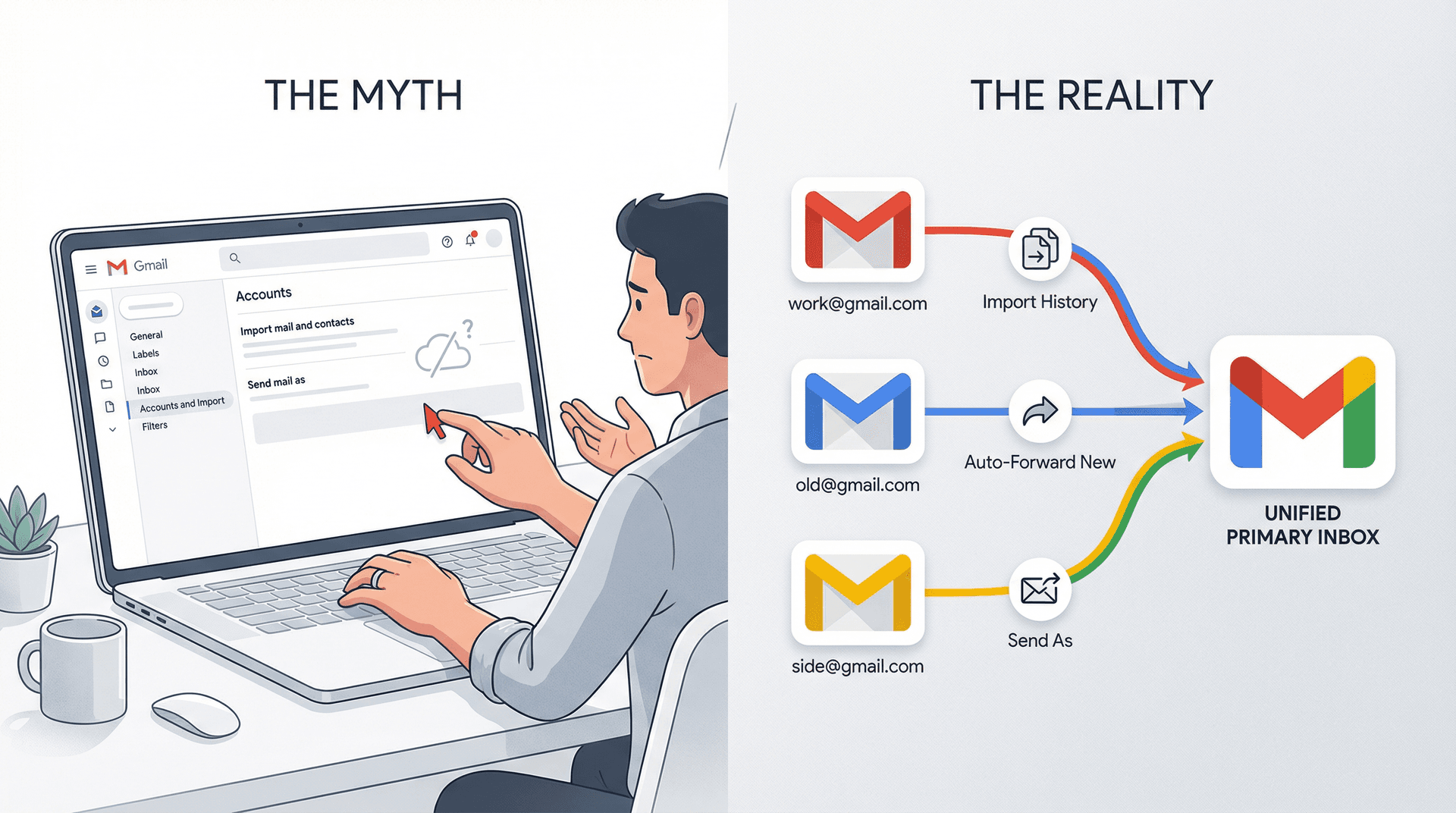
If you went looking for a big shiny "Merge accounts" button in Gmail and didn't find one, you're not crazy.
Google simply doesn't let you literally merge Google accounts into a single identity. What you can do is copy email from old accounts into one primary account, redirect new mail automatically, and keep sending from all your old addresses so nobody notices the change.
This guide walks you through exactly how to do that, step by step, without losing email or breaking logins. Everything here is current for late 2025, including upcoming changes Google announced for 2026.
What Does Merging Gmail Accounts Actually Mean?
Before touching any settings, you need a mental model.
A Google account is really four things glued together: your identity (login, recovery options, 2FA, security history), your email address (the thing people send messages to, like oldname@gmail.com), your mailbox data (all your existing messages, labels, filters, spam history), and all your other Google data (Drive files, Photos, Calendar, YouTube, Play purchases, and so on).
There's no supported way to fuse two Google identities into one. Google keeps each account as a separate island.
So "merging Gmail accounts without losing emails" really means choosing one primary inbox where you'll live going forward, copying old emails (and usually contacts, calendars, Drive files) into that primary account, forwarding new emails from old addresses into that primary inbox, and setting up "Send mail as" so you can still send from old addresses.
From a first principles view, you're designing a pipeline:
Old accounts → copy historical data → forward new mail → act from one primary inbox
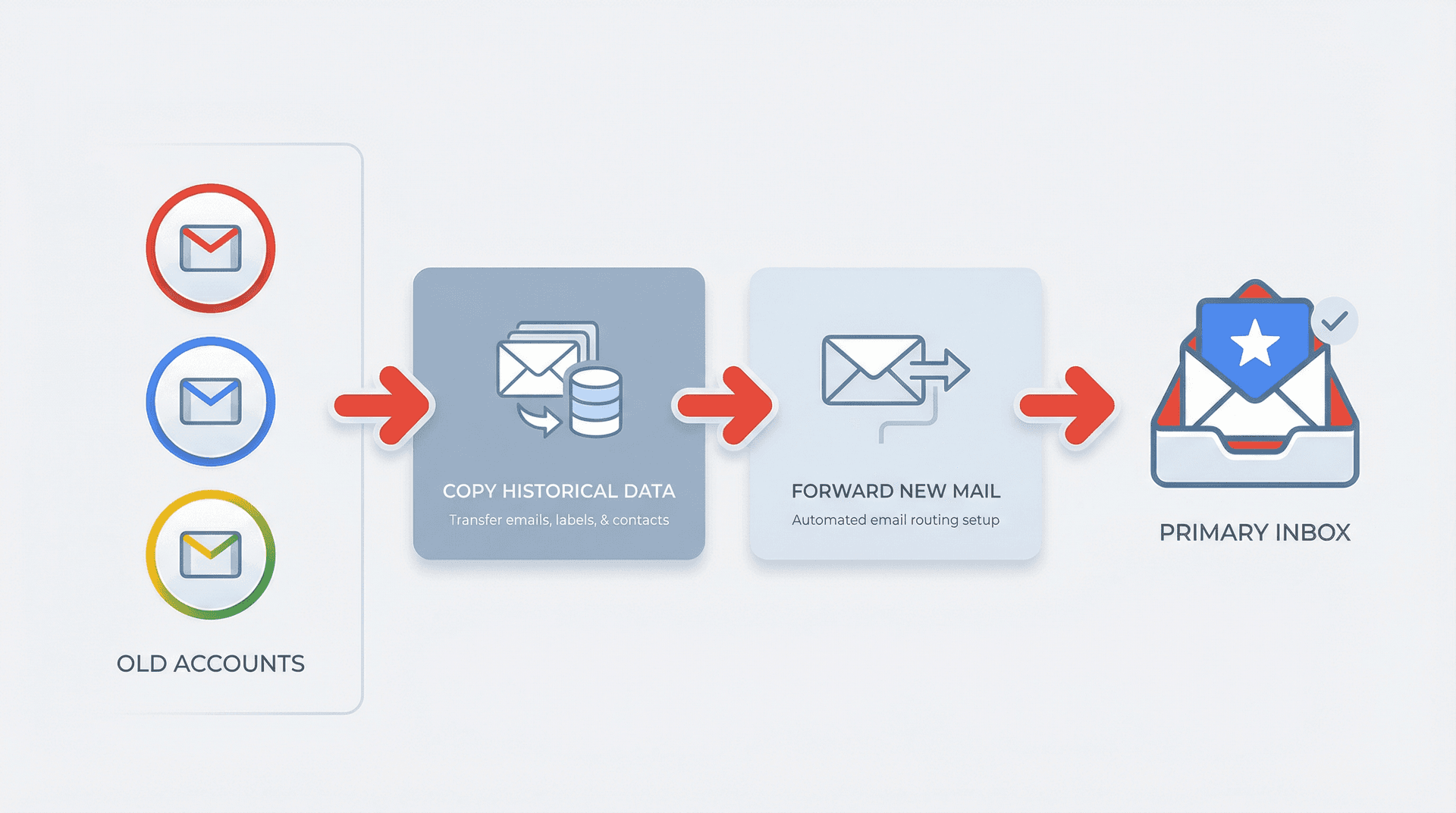
Once you see it that way, the rest is just plumbing.
3 Common Gmail Merge Patterns (Which One Are You?)
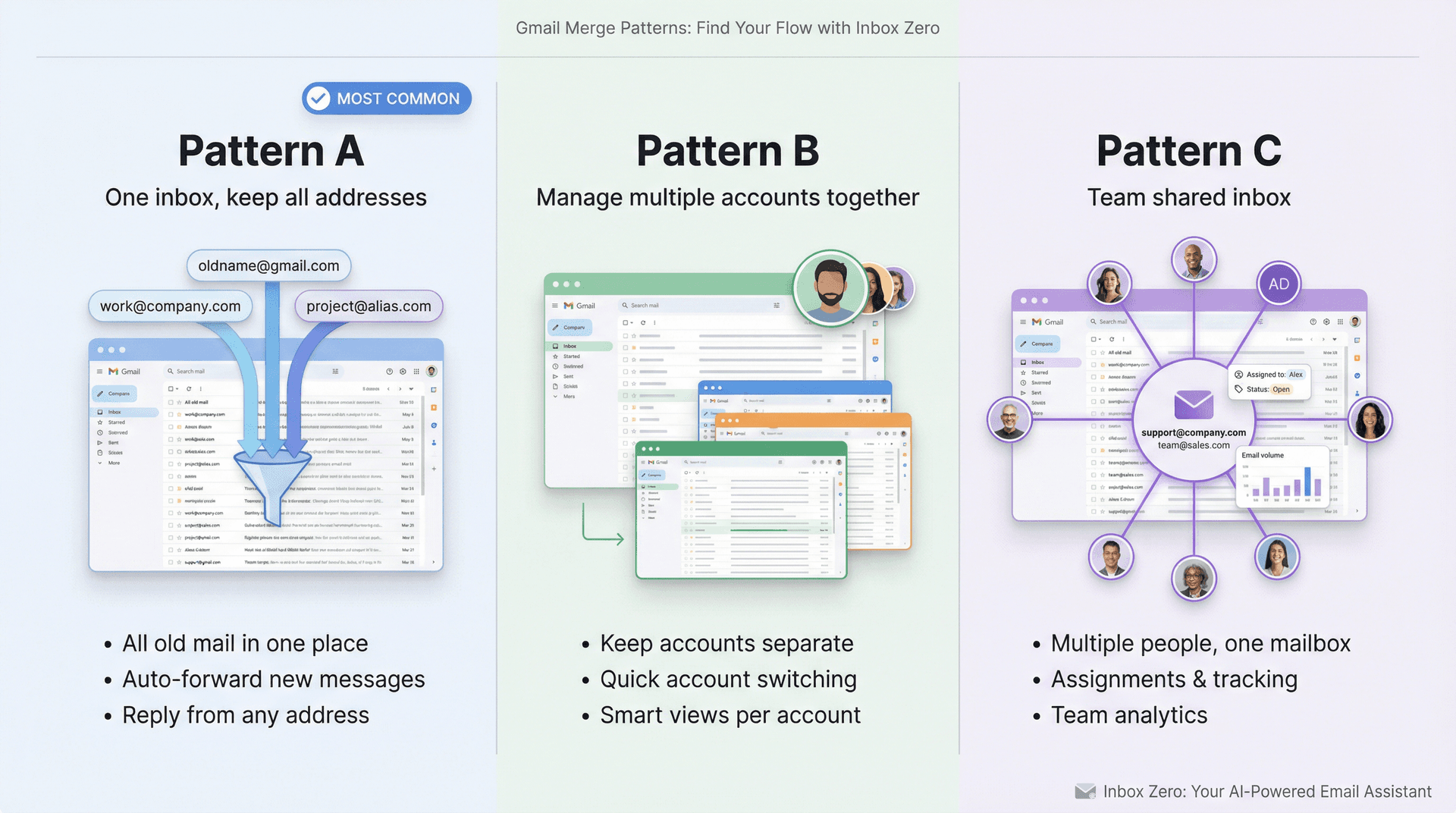
People who search this query are usually in one of three situations.
Pattern A: "I want one inbox, but keep all my addresses"
You want all old mail in one primary Gmail account, new mail from old addresses auto-forwarded there, and the ability to reply from each old address as if nothing changed. This is what most individuals actually want, and this guide focuses on this pattern.
Pattern B: "I just want to manage multiple accounts together"
You're fine keeping accounts separate, but want one interface where you can quickly switch accounts and smart views across multiple labels (like "To Reply" or "Newsletters").
In that case you might not need migration at all. You can sign in to multiple Google accounts and switch in 2 clicks, use Gmail's Multiple Inboxes on desktop, or add Inbox Zero Tabs for Gmail to create custom tabs like "To Reply", "Receipts", "Newsletters" per account. We'll still cover these as "alternatives" later.
Pattern C: "We are a team and want one shared inbox"
You might be a support, sales, or ops team wanting support@company.com that multiple people can work from, with tracking, assignments, and analytics. This is really a shared inbox / delegation problem, not a personal merge. For that, Google Workspace's data migration and collaborative inbox patterns are more relevant.
For now, assume you want Pattern A: one primary account, no email loss.
Why You Must Back Up Every Gmail Account First
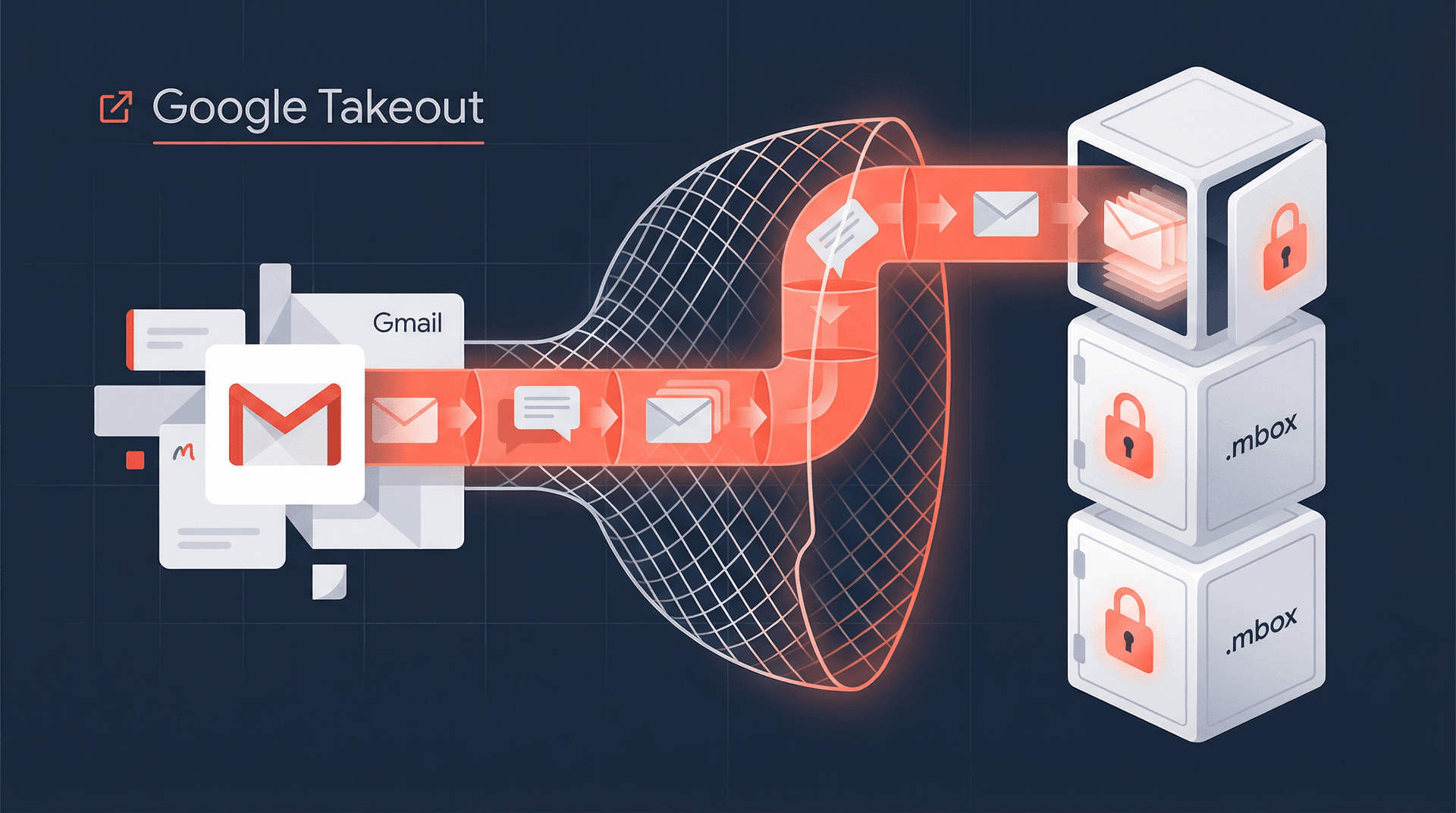
Before you touch forwarding, imports, or filters, you should have a full export of each account.
How to Export Gmail with Google Takeout
For each Gmail account you're merging, sign in to that account and visit Google Takeout (google.com/settings/takeout). Deselect everything except Mail, choose your delivery method (download link or add to Drive), and click Create export. Wait for Google to prepare the archive.
This gives you one or more .mbox files. These are standard mailbox archives you can open later with desktop clients like Thunderbird, import into another mail provider if you ever leave Gmail, or keep as an offline safety net in case something goes wrong.
Takeout is a copy, not a move — it doesn't delete anything from Gmail.
What This Protects You From
If you misconfigure auto-forwarding, delete a filter, or accidentally purge a label, you still have a complete historical snapshot of each account and the ability to reconstruct lost messages later. If your email contains anything important (legal, financial, medical), this step is non-negotiable.
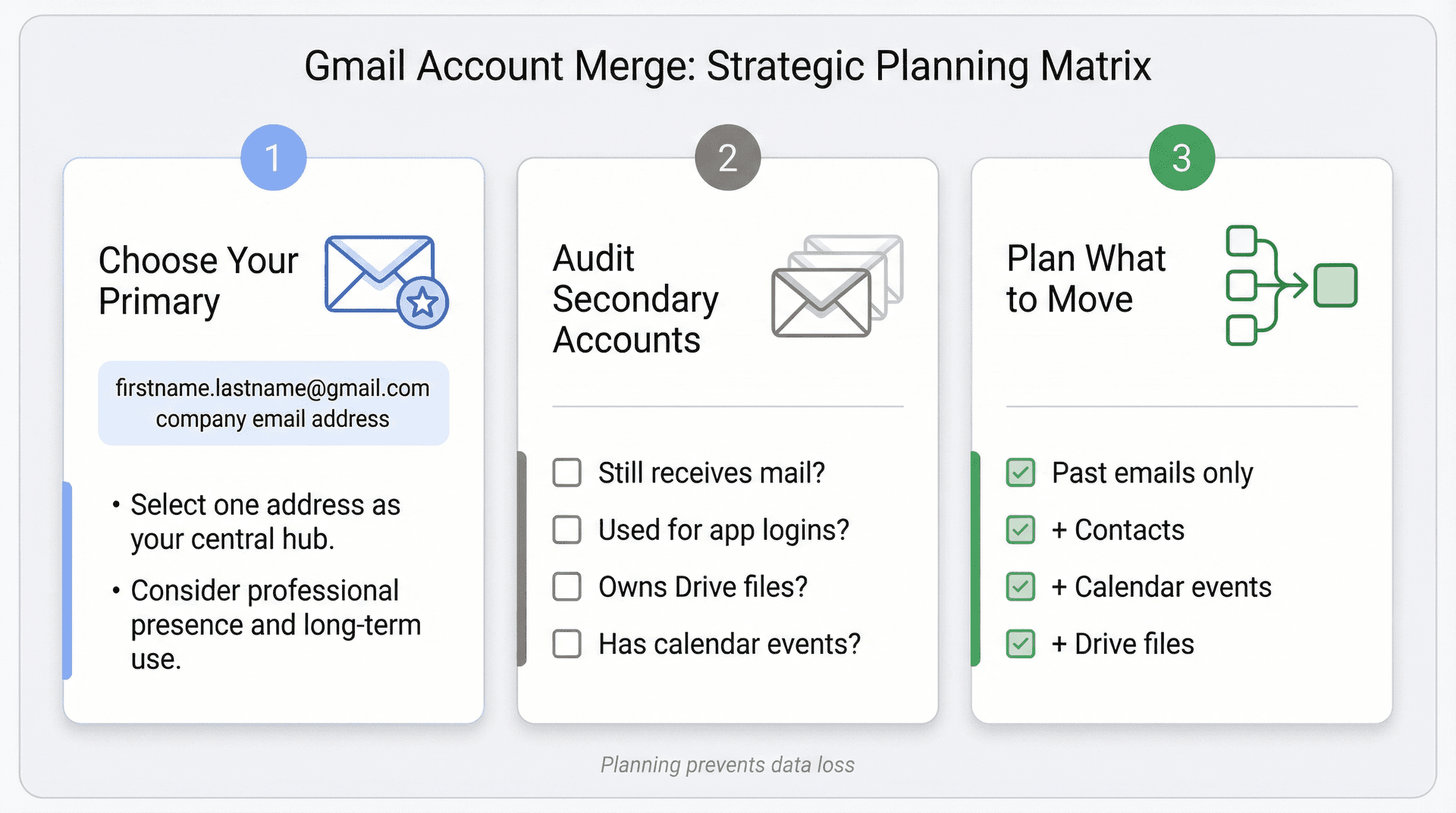
How to Choose Your Primary Gmail Account and Plan the Merge
Next, on paper (or in a doc), decide:
| Element | What to Document |
|---|---|
| Primary account | The Gmail you'll use going forward. Often your real name or company address if consolidating work mail. |
| Secondary accounts | Every Gmail or Google Workspace account you want to pull into the primary. For each, note: Does it still receive important mail? Do you log into apps with it? Does it own important Drive files or calendars? |
| What to move | Past mail only? Past mail + contacts? Past mail + contacts + calendar events + Drive files? |
This lets you build a checklist instead of just poking around in Gmail settings.
Step 1: How to Import Old Emails Into Your Primary Gmail
There are two main ways to move historical mail into a new Gmail account: Gmail's built-in "Import mail and contacts" wizard, or the admin-level Data Migration Service for Google Workspace. We'll start with the built-in route.
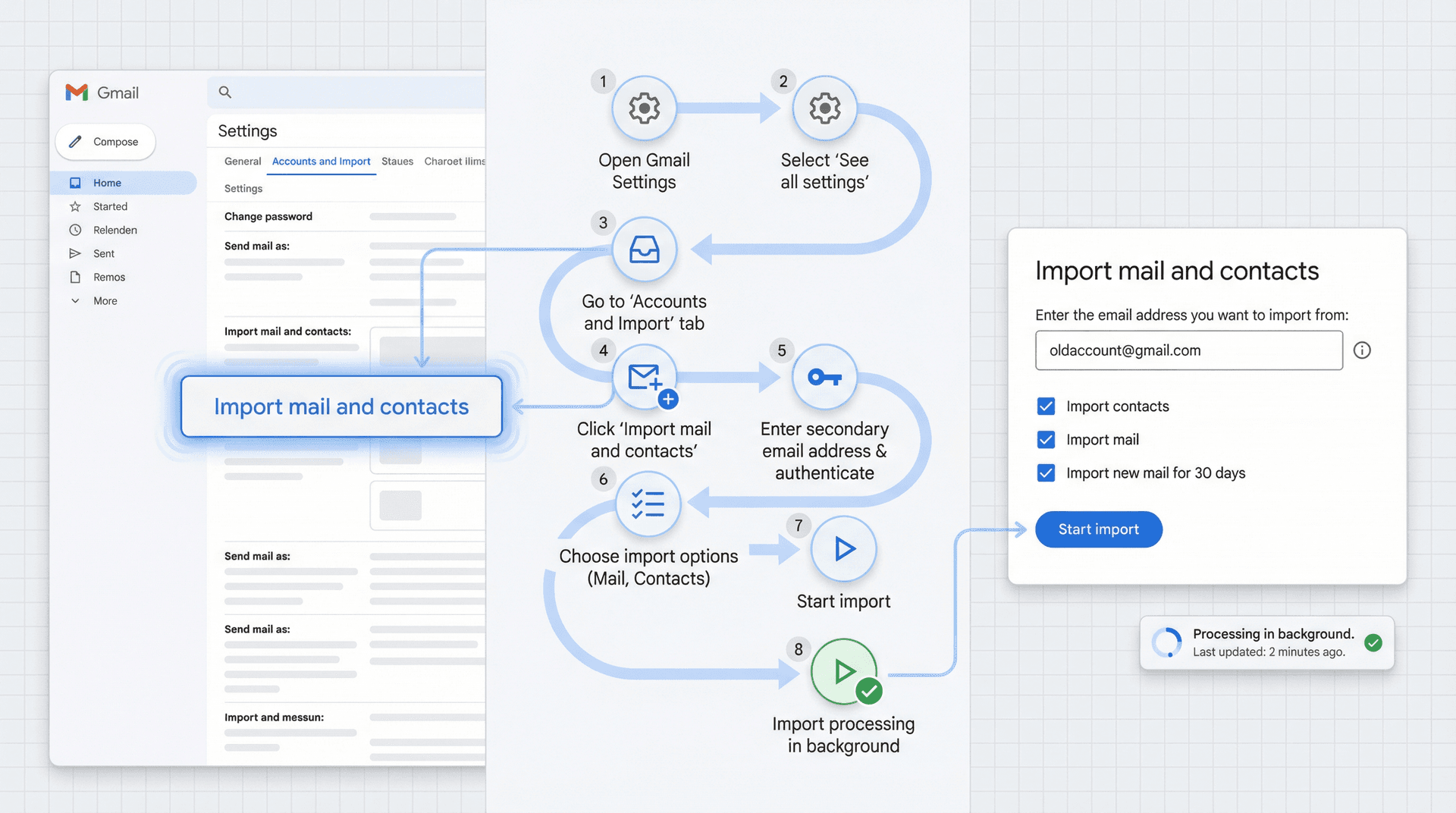
How to Import Mail and Contacts in Gmail
As of late 2025, Gmail still supports one-time imports from other accounts through the Accounts and import tab.
In your primary Gmail account, open Gmail on a computer, click the gear icon and choose "See all settings," then go to "Accounts and import." Under "Import mail and contacts," click that option, enter the email address of a secondary account, and follow the prompts. Sign into that secondary account when asked and grant access. Choose to import contacts, import mail, and import new mail for the next 30 days (if offered), then click "Start import."
Under the hood this uses POP to pull messages. Gmail's newer POP deprecation notice says the continuous "Check mail from other accounts" feature goes away for third-party accounts in January 2026, but one-time imports of mail and contacts will remain supported. So treat this as a one-time historical migration, not an ongoing sync.
Tips
If you're importing from another Gmail account, you may be asked to enable POP in that account first under Settings, then Forwarding and POP/IMAP. Imports can take hours or days if you have a large mailbox — Gmail continues processing in the background even if you log out. Imported messages typically appear with a label like oldaccount@gmail.com so you can filter or reorganize them later.
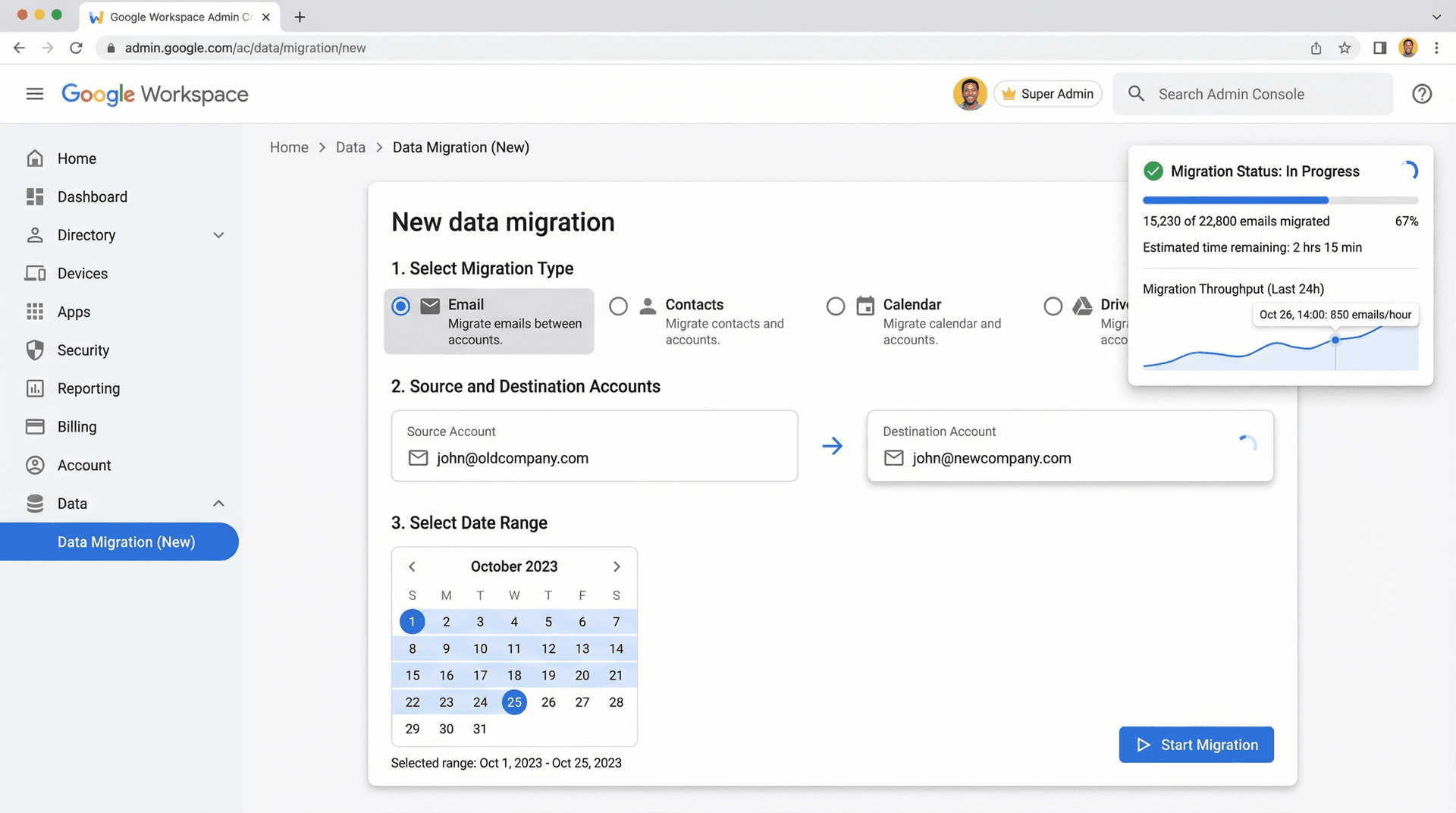
For Workspace Admins: How to Use Data Migration Service
If you're consolidating accounts inside a Google Workspace domain (or between domains), you're better off with the Data Migration Service in the Admin console. Sign into admin.google.com as a super admin, go to Menu then Data, then Data import & export, then Data Migration (New). Choose Email as your migration type, follow the specific "Migrate from Google Workspace account" steps for Google Workspace sources, pick the source account, destination account, and date range, and start the migration. You can monitor progress from the Admin console.
This copies mail (and optionally calendar and contacts) between Workspace accounts, doesn't delete anything from the source, and gives you better reporting and control than the end-user import wizard. If you're an employee, don't attempt to DIY this if you lack admin rights — involve IT.
Step 2: How to Auto-Forward New Emails to Your Primary Account
Imports take care of the past. To avoid missing future messages, you set up automatic forwarding from each secondary account.
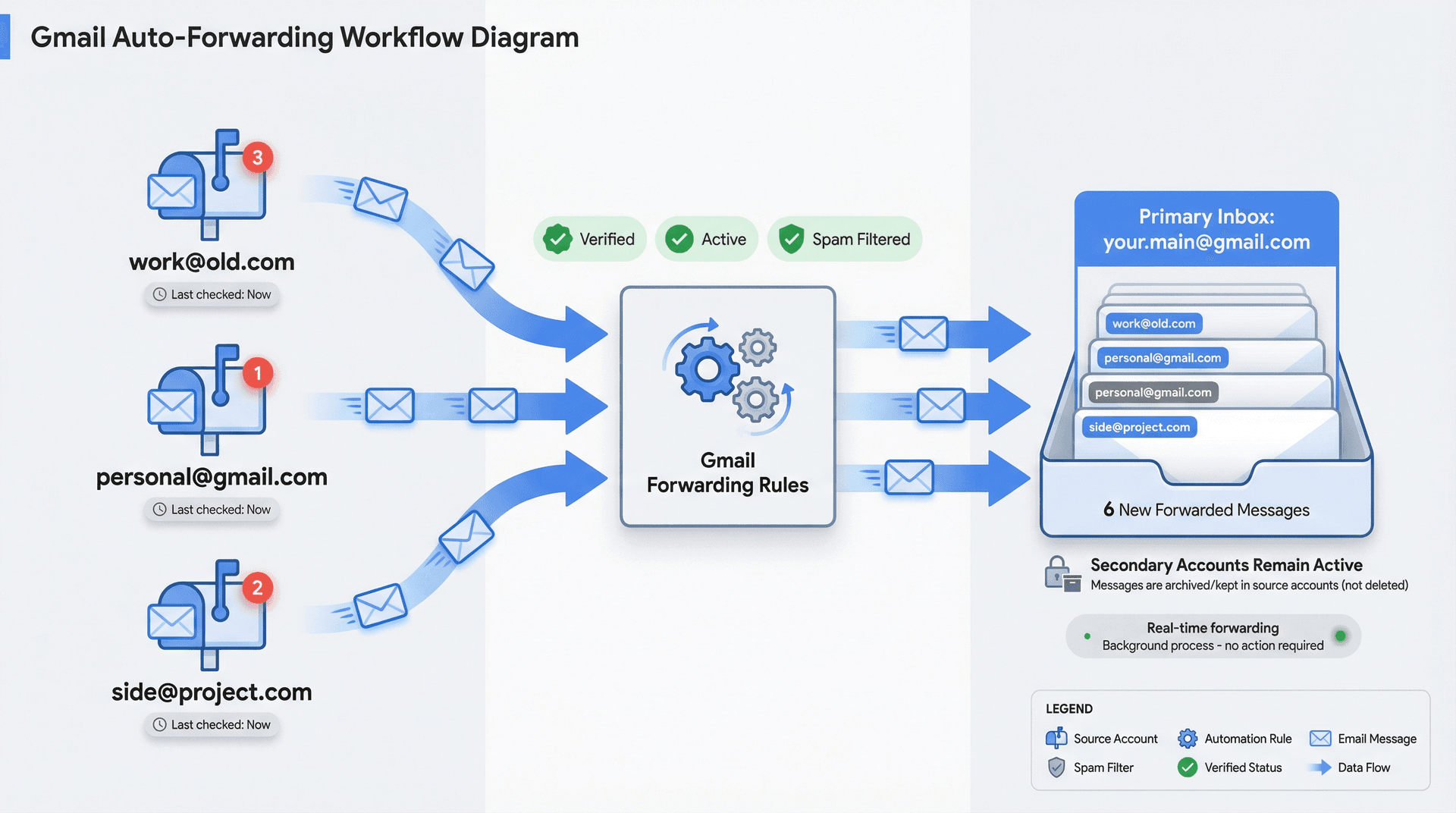
How to Set Up Auto-Forwarding in Gmail
In each secondary Gmail account, open Gmail on a computer and go to Settings via the gear icon, then "See all settings." Navigate to the "Forwarding and POP/IMAP" tab, click "Add a forwarding address" under Forwarding, and enter your primary Gmail address. Confirm the verification link sent to your primary account, then return to the secondary account's settings. Under "Forward a copy of incoming mail to," choose your primary address and decide what happens to the secondary's copy (keep in inbox, archive, etc.). Save your changes.
New mail to that secondary account will now land in your primary inbox (spam is usually excluded). You can also create filters to forward only some messages or forward to multiple addresses by creating multiple filters.
What About "Check Mail From Other Accounts" and POP?
Historically, many guides suggested going to Accounts and import in your primary Gmail, choosing "Check mail from other accounts," adding a mail account, and letting Gmail periodically poll other inboxes using POP.
Google has now announced that starting January 2026, Gmail will no longer support checking emails from third-party accounts via POP. The "Check mail from other accounts" option will disappear from Gmail on the web.
You can continue to either set up forwarding from the other provider or add that account to the Gmail app on mobile, which uses IMAP instead of POP. Because of that, you should treat POP-based "Check mail from other accounts" as legacy and prefer forwarding plus the one-time import we covered.
Step 3: How to Keep Sending From Your Old Email Addresses
At this point, old mail is imported and new mail is forwarding into your primary account. But if you hit Reply from the primary, Gmail will reply as your primary address by default. If clients, employers, or services expect replies from your old addresses, that's not acceptable.
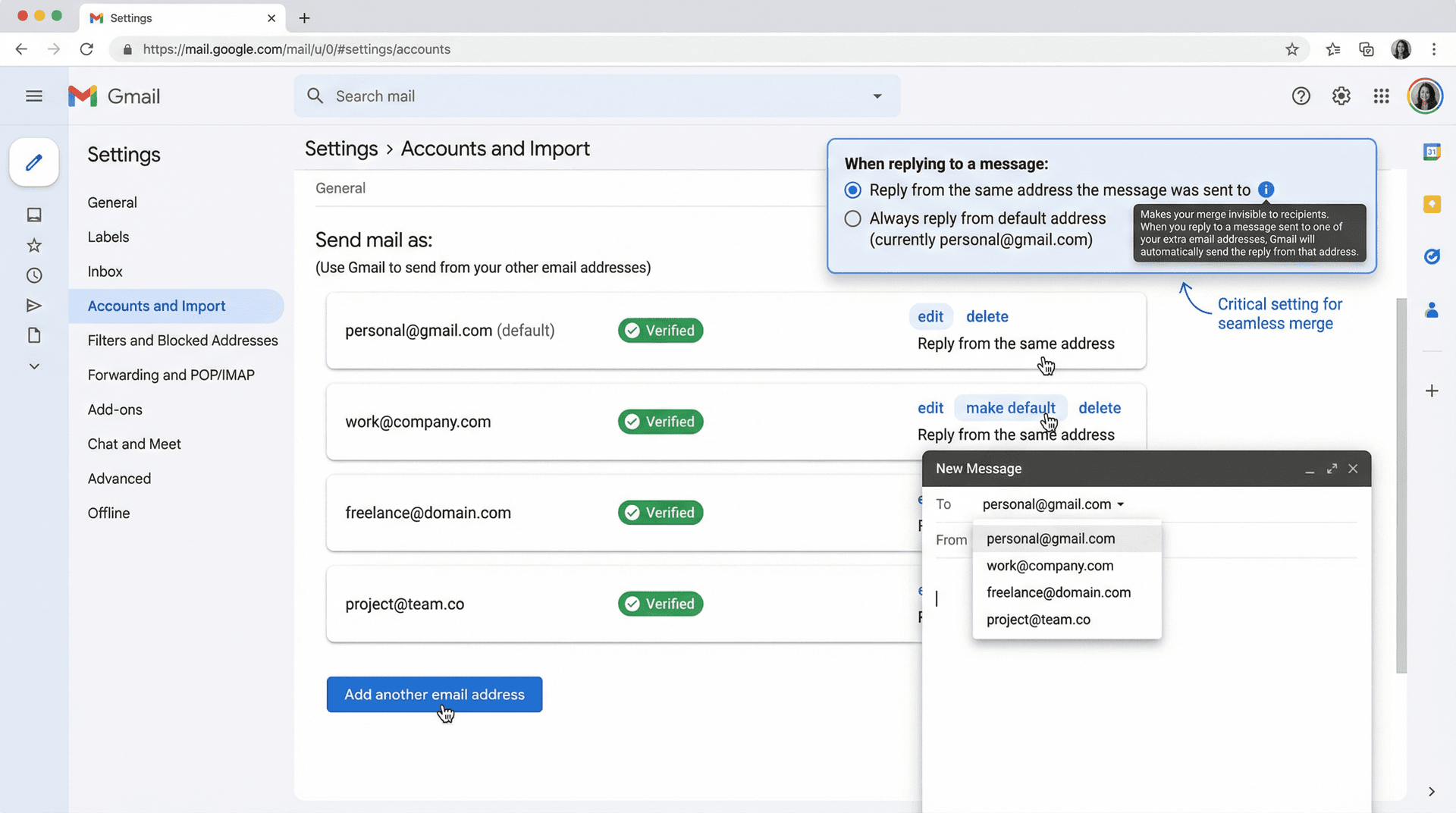
How to Add Old Email Addresses as Send-From Options
In your primary account, open Gmail on a computer and go to Settings, then "See all settings," then "Accounts and import." In "Send mail as," click Add another email address and enter your name and the secondary email address. Choose whether to treat it as an alias — for most personal aliases, the default "treat as an alias" is correct, though for more complex routing or separate inboxes, you may want to untick it. For non-Gmail addresses, enter the SMTP server details for that account; for other Gmail accounts, Gmail can usually manage SMTP for you. Click "Send Verification," then go to that secondary inbox, open the verification email, and click the link. Back in your primary account, you can now choose that address in the From field when composing mail.
How to Auto-Reply From the Right Email Address
Still in Settings, then "Accounts and import" in your primary account, look for "When replying to a message" and choose "Reply from the same address the message was sent to."
This tells Gmail: when you receive a message that was sent to oldaddress@gmail.com, reply using that address, not your primary.
That one setting is what makes the merge invisible to the outside world.
Step 4: How to Move Contacts, Calendars, and Drive Files
If you stop at just email, you'll still have surprises. Autocomplete may not know old contacts, calendar events could stay tied to the wrong account, and Drive files might vanish if you delete an old account that owns them. You need to decide how much non-email data to pull over.
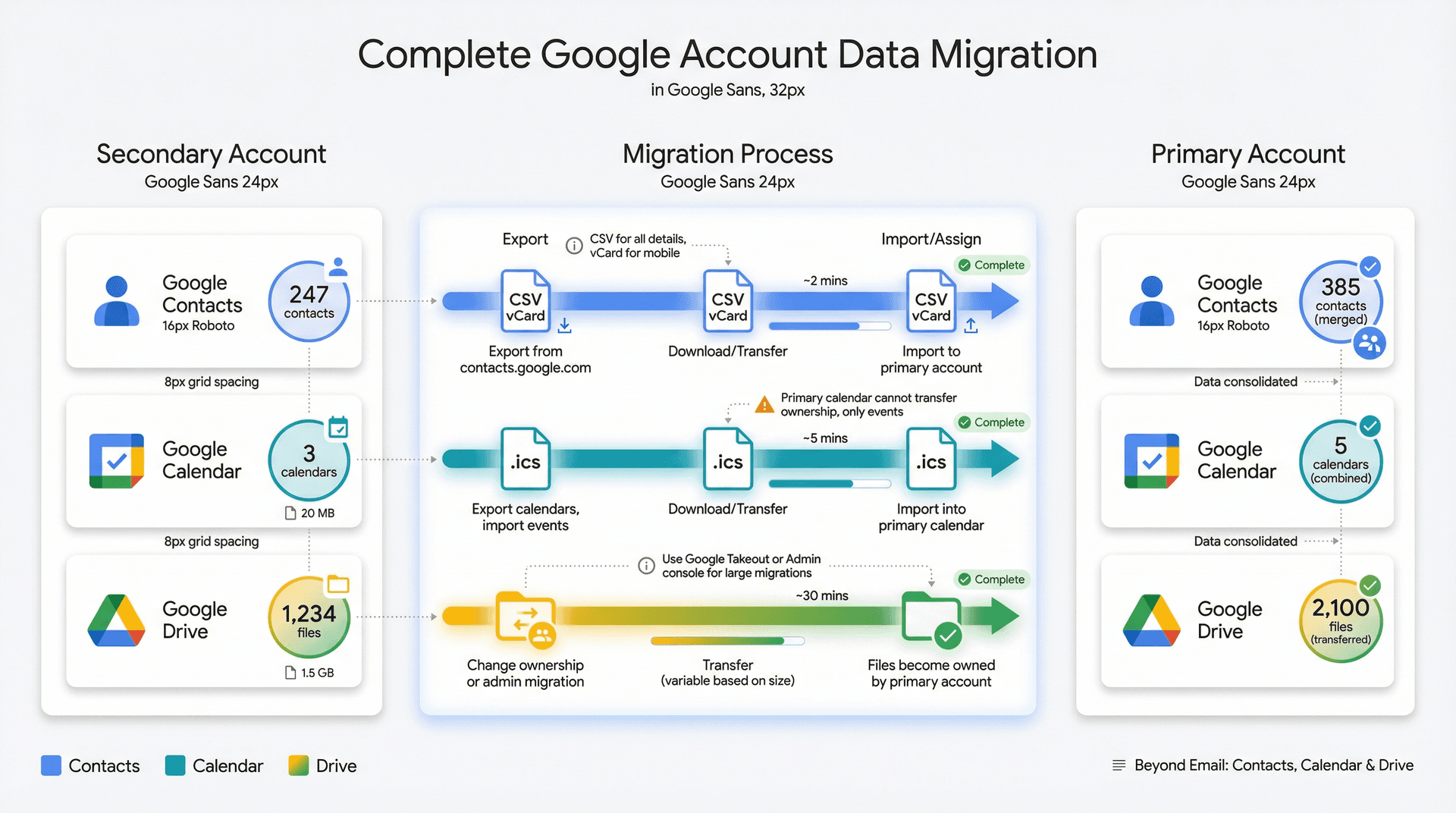
How to Move Contacts Between Gmail Accounts
For each secondary account, go to contacts.google.com while signed in to that account, use the left sidebar Export option, and export to Google CSV or vCard. Then, in your primary account, go to contacts.google.com, choose Import from the left sidebar, and upload the CSV/vCard you exported.
This merges contacts from multiple accounts into one list. Expect duplicates; Google Contacts has basic tools for merging them.
How to Move Calendars Between Gmail Accounts
Key detail: Google doesn't let you transfer your primary calendar to another owner. You can transfer ownership of secondary calendars or export/import them.
For each secondary account, go to Google Calendar on the web, click the gear and open Settings, then under Import & Export choose Export. This downloads .ics files for your calendars. In your primary account, open Calendar, go to Settings, then Import & Export, and under Import choose the .ics file and the calendar you want to import into.
You can also create brand-new calendars in the primary account and import old events into those, or transfer ownership of specific events or secondary calendars where needed.
How to Move Drive Files Between Gmail Accounts
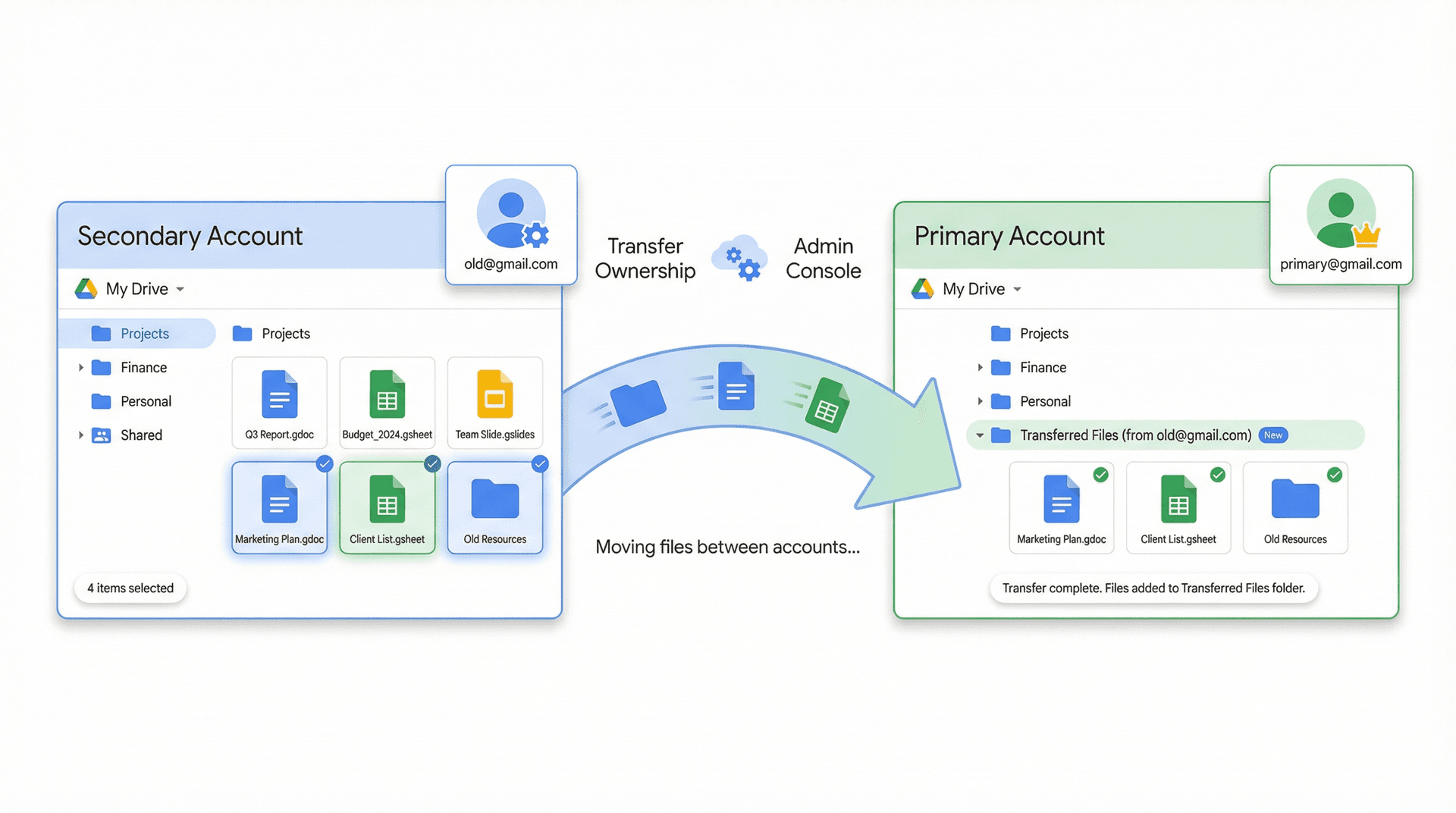
Drive is trickier because of ownership rules.
For personal accounts, you can change ownership of individual files and some folders to another Google account, if that account is within the same domain or sharing model. For large moves, Google suggests either mass transferring ownership as an admin or using Takeout to export Drive data and re-upload to the new account.
For Workspace admins, use the Admin console's "Transfer ownership" function to transfer all Drive content from one user to another. In 2025, Google also redesigned the Data Migration Service with better Drive migration and reporting. If you're moving between organizations or to a personal Gmail, you may need a third-party migration service.
Step 5: How to Clean and Organize Your Merged Inbox
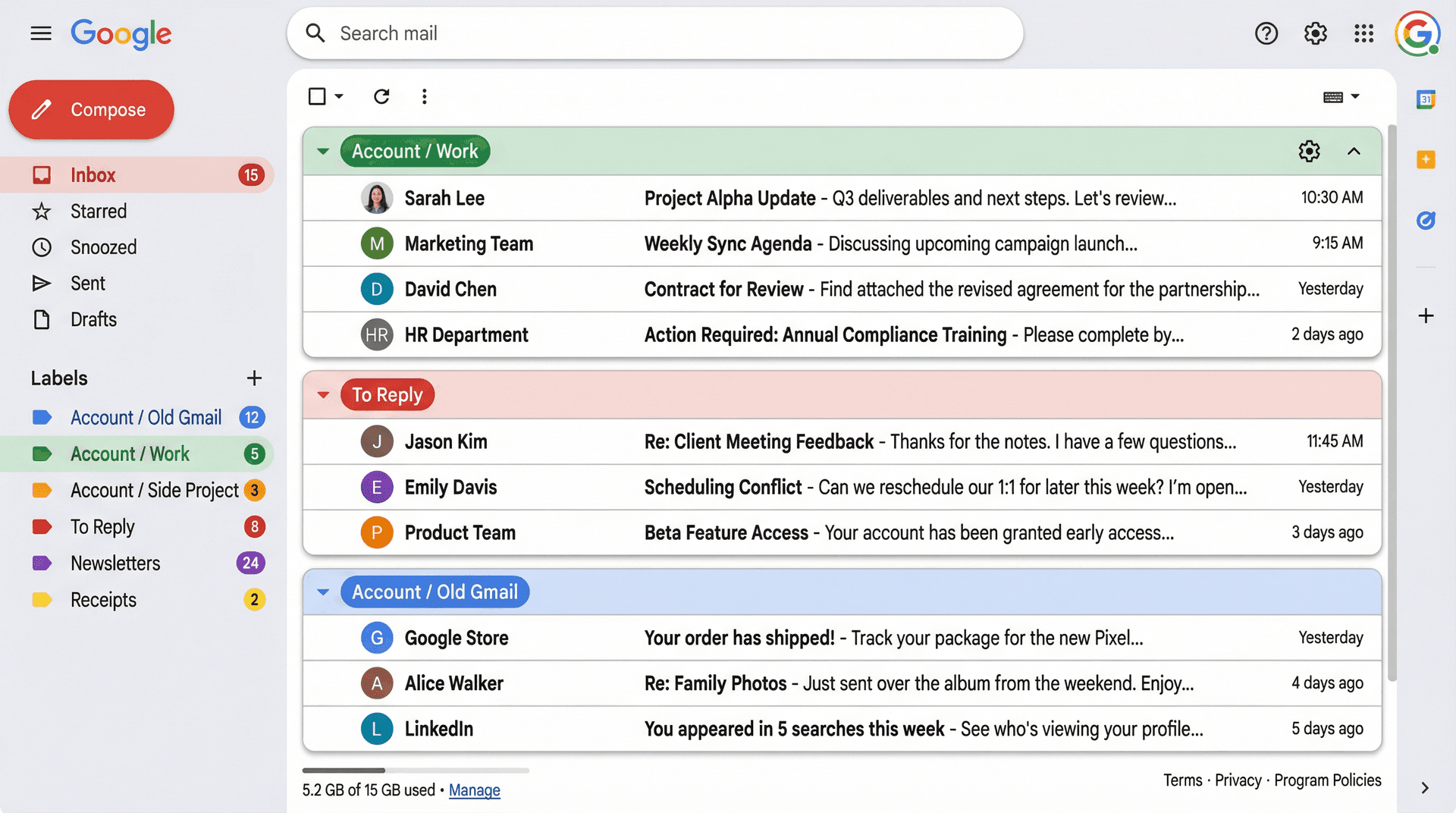
Once everything flows into your primary account, you typically have a new problem: one overloaded inbox. This is where you combine Gmail's native tools with smart automation.
How to Use Gmail Labels Properly
Gmail uses labels, not folders. One email can have multiple labels and appear in multiple views without being duplicated. (Learn more about Gmail labels vs folders)
At minimum, create labels like Account / Old Gmail, Account / Work, and Account / Side Project. Then auto-label imported messages from each source using filters and use Multiple inboxes to give each label its own pane on desktop.
If you want this to feel more like "tabs" inside Gmail, the Inbox Zero Tabs for Gmail extension lets you turn any search query or label into a tabbed view, per account. You get tabs like "To Reply," "Newsletters," and "Receipts," with separate configurations for each Gmail account, and it works entirely in your browser with no data collection.
How to Reduce Newsletter and Promo Clutter
After a merge, newsletters from multiple accounts pile up. Gmail has started rolling out a Manage Subscriptions view that shows a list of your subscription senders sorted by frequency and lets you unsubscribe with one click. It lives in the navigation on web and mobile in select countries.
You can go further with Inbox Zero's Bulk Email Unsubscriber, which scans your inbox to find newsletter and marketing senders, shows how often you read vs. archive each sender, and lets you unsubscribe, auto-archive, or "soft unsubscribe" in bulk. Doing this once after migration makes your unified inbox much more manageable.
How AI Email Assistants Can Maintain Your Inbox
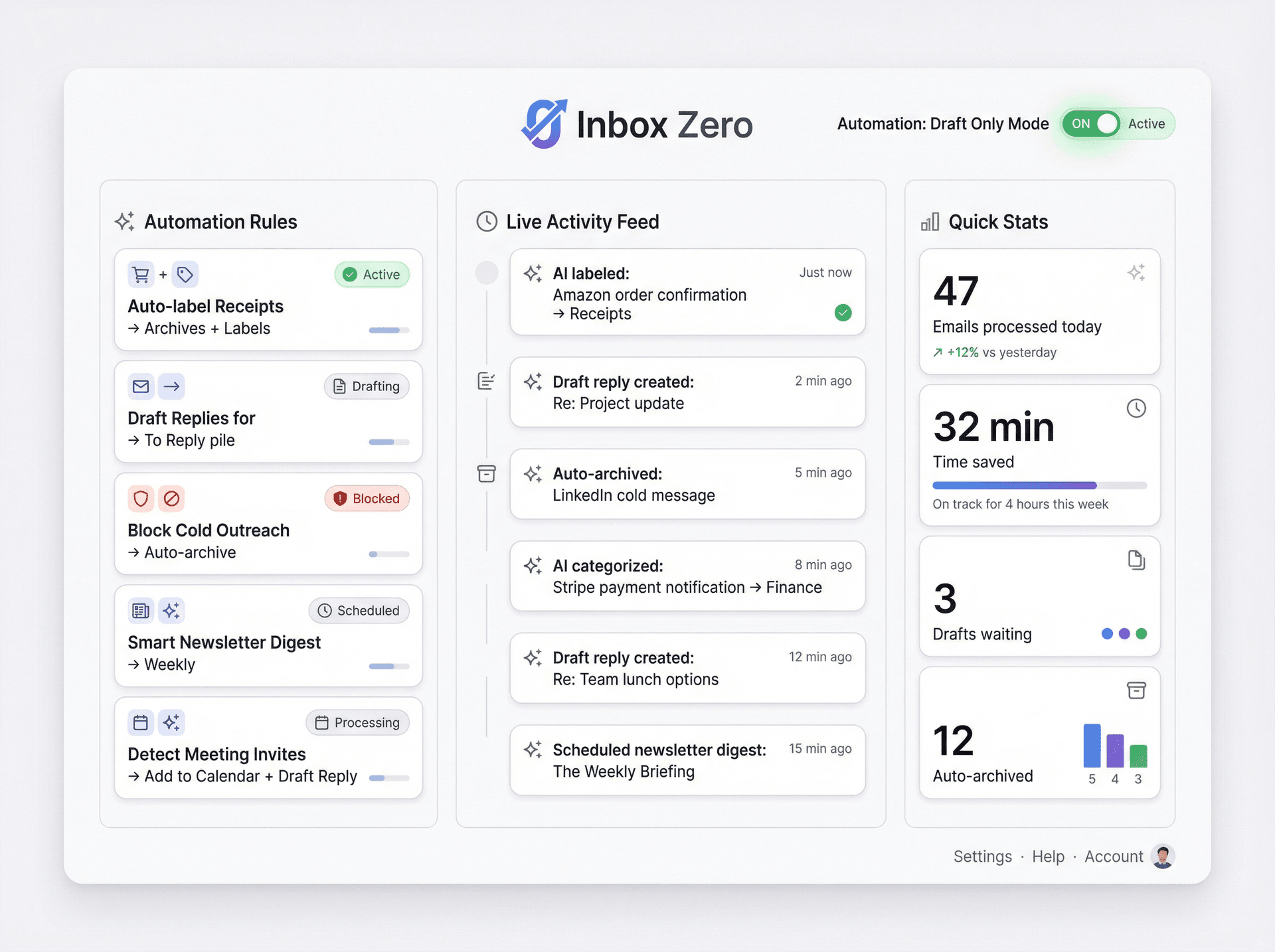
Once all your mail flows into one primary account, tools like Inbox Zero get much more leverage. You can automatically label receipts, travel, newsletters, and cold outreach, draft replies for your "To Reply" pile, and maintain organization per sender without manual sorting. You can keep automation in "draft only" mode until you trust the rules, which means nothing happens without your explicit review.
Should You Even Merge? Managing Multiple Accounts Instead
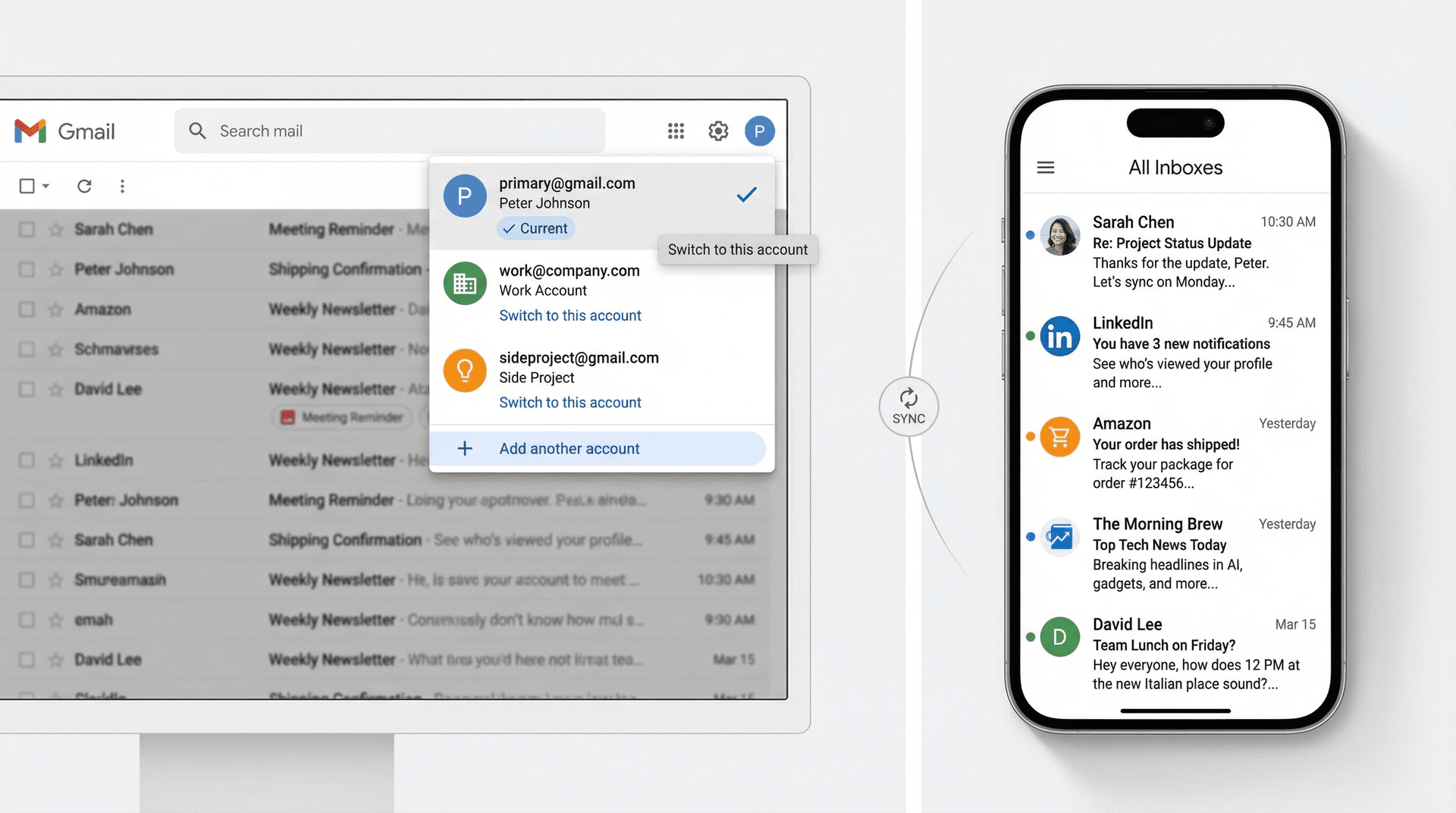
Important blind spot: sometimes you don't need to merge at all. If your main issue is context switching, not data distribution, consider these approaches.
How to Use All Inboxes for Multiple Gmail Accounts
Google lets you stay signed into multiple accounts at once. On the web, click your profile picture, then "Add account," and sign into each account. On mobile, the Gmail app has an "All inboxes" view that shows messages from all accounts in one list. You still keep data separate, but processing becomes easier.
How to Use Multiple Inboxes and Tabs on Desktop
On desktop Gmail, switch Inbox type to Multiple inboxes and configure each section with a search query, such as to:work@company.com or label:Account/Work. Inbox Zero Tabs for Gmail takes that approach further, giving you visually separate tabs driven by any search query, tuned per account.
For Teams: How to Set Up Delegated or Shared Inboxes
For support or sales teams, the right answer is usually a delegated inbox where multiple teammates can access the same mailbox without sharing passwords, or a shared inbox platform (like Inbox Zero's AI assistant plugged into a team address) that adds automation and analytics on top. In those cases, you usually don't migrate mail between people's personal accounts at all.
Common Mistakes That Lead to Lost Emails (And How to Avoid Them)
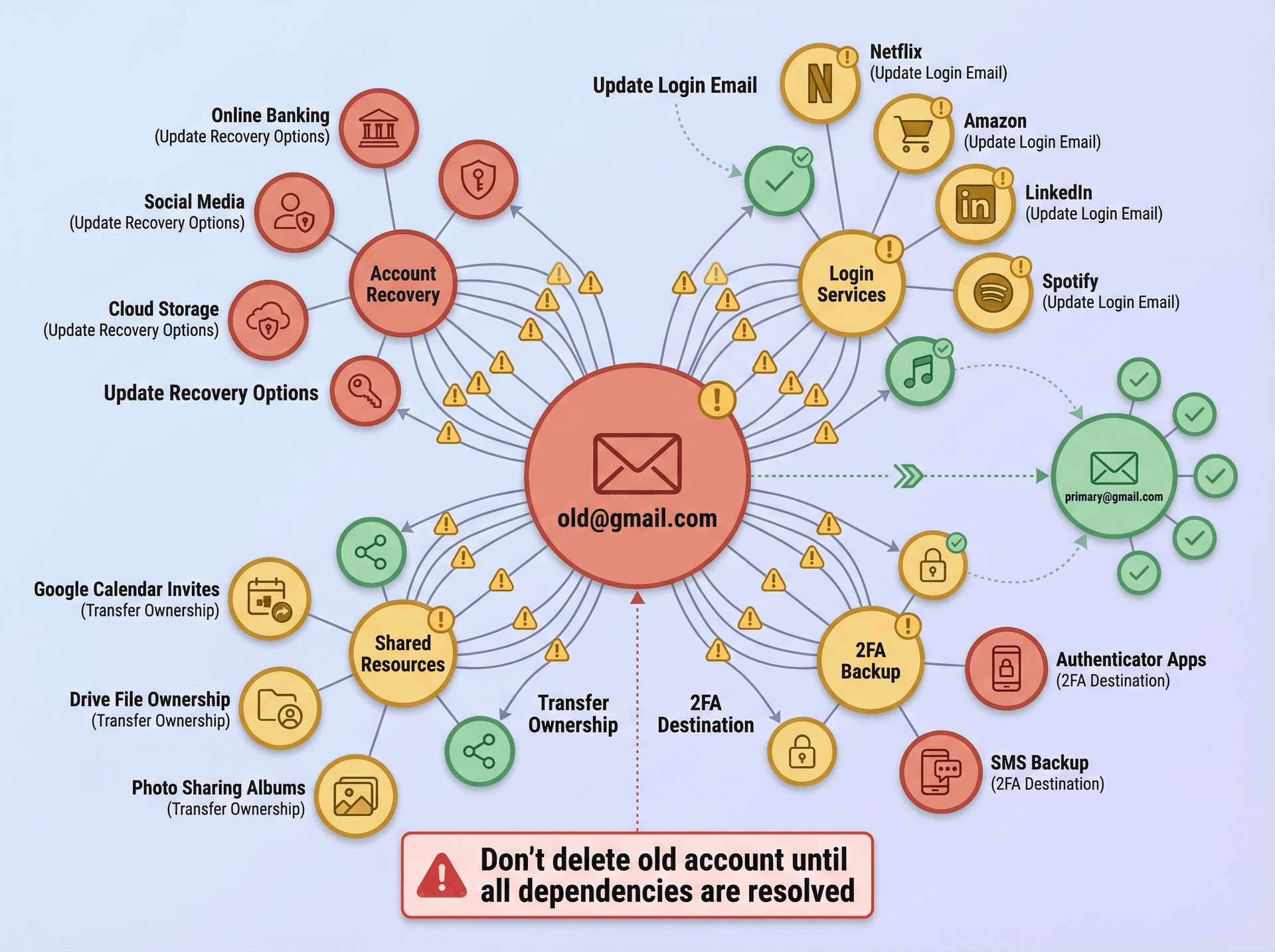
Here are the edge cases that bite people months after a merge.
Update Logins and Account Recovery Settings
Your old Gmail address is probably used for logging into other sites and apps, as a recovery email for other accounts, and as a 2FA backup destination. Merging email doesn't change those relationships.
You should keep old accounts active and secured with strong passwords and 2FA, gradually update logins on important services to use your new primary email, and update recovery emails and phone numbers where needed.
Don't delete an old account until you're sure you're no longer relying on it for identity.
Update Calendar Invites and Drive Sharing Permissions
Even after migration, existing calendar invites may still show your old email to others, and shared Drive files may still list your old account as the owner or editor. For critical shared resources, explicitly re-share from the primary account or change ownership where possible, or use shared drives for team data.
What Happens to POP and Third-Party Accounts After 2026
If you relied on Gmail's "Check mail from other accounts" to pull in non-Gmail addresses, that feature goes away for third-party accounts in January 2026. Gmail recommends switching to forwarding from the other provider or using the Gmail app on mobile with IMAP to access multiple accounts.
If you want a real long-term solution, build your workflows on forwarding from other providers into a primary Gmail, or connecting all accounts to an automation layer like Inbox Zero while leaving their storage where it is.
Complete Gmail Merge Checklist (Zero Data Loss)
If you want a boxed recipe, follow this sequence.
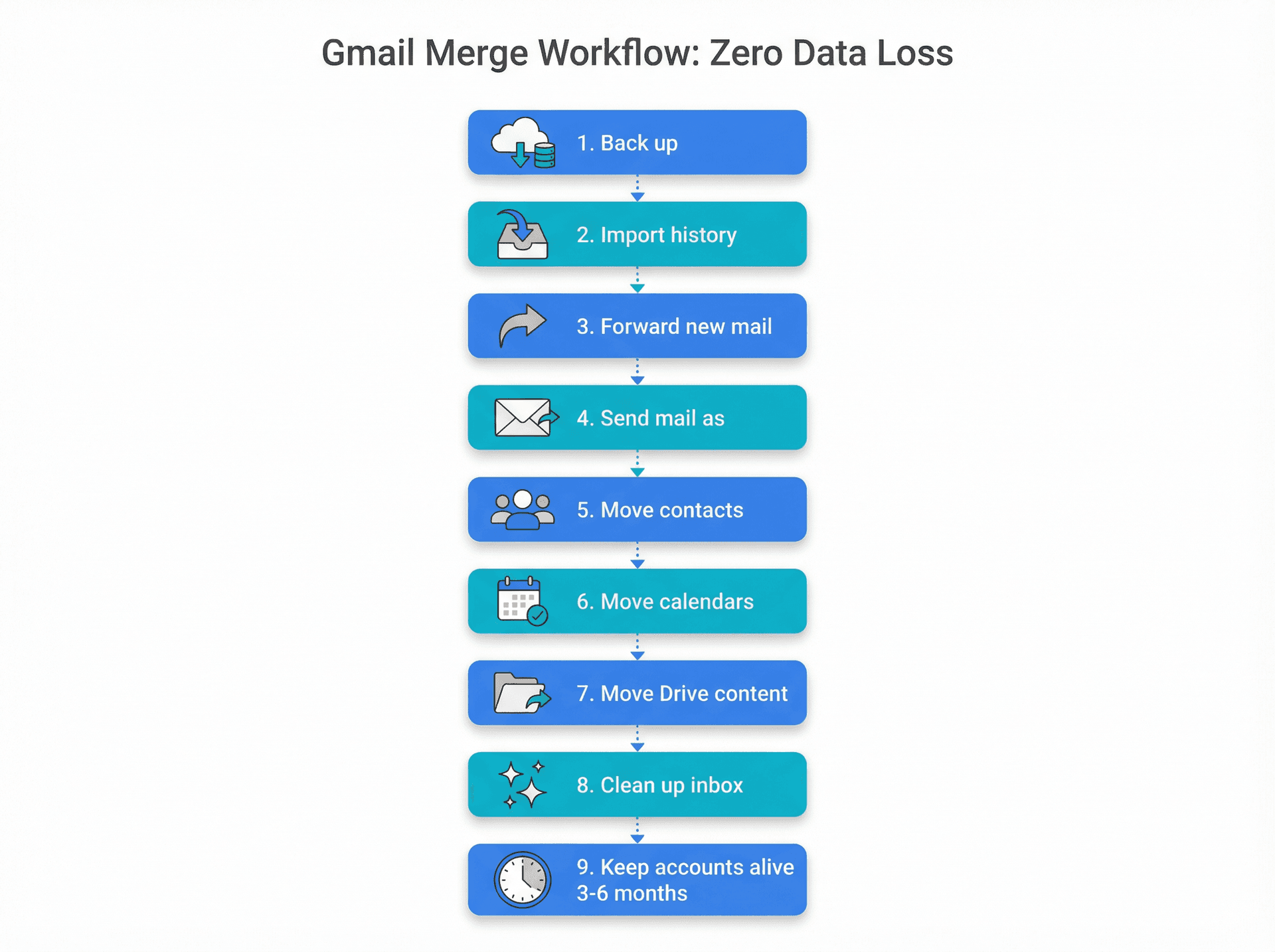
For each secondary Gmail account:
| Step | Action |
|---|---|
| 1. Back up | Export Gmail via Google Takeout |
| 2. Import history into primary | In the primary account, use Settings → Accounts and import → Import mail and contacts |
| 3. Forward new mail | In the secondary account, enable forwarding to the primary in Forwarding and POP/IMAP |
| 4. Set up "Send mail as" in primary | Add the old address under Send mail as, verify, and set "Reply from same address the message was sent to" |
| 5. Move contacts | Export contacts as CSV/vCard from secondary, import into primary via Google Contacts |
| 6. Move calendars | Export calendars as .ics from secondary and import into primary |
| 7. Move critical Drive content | Change ownership to the primary account or transfer via admin tools where possible |
| 8. Clean up the merged inbox | Create labels per source account, use Multiple inboxes or Inbox Zero Tabs, run bulk unsubscribe with Gmail's Manage Subscriptions and/or Inbox Zero's Bulk Email Unsubscriber |
| 9. Keep old accounts alive for 3-6 months | Maintain forwarding, but log in occasionally to catch any odd alerts or missed messages |
If you do all of that, it's extremely hard to lose email by accident.
How Inbox Zero Helps After You Merge Gmail Accounts
This guide has been mostly vendor-neutral on purpose. Inbox Zero becomes most useful after you have a plan.
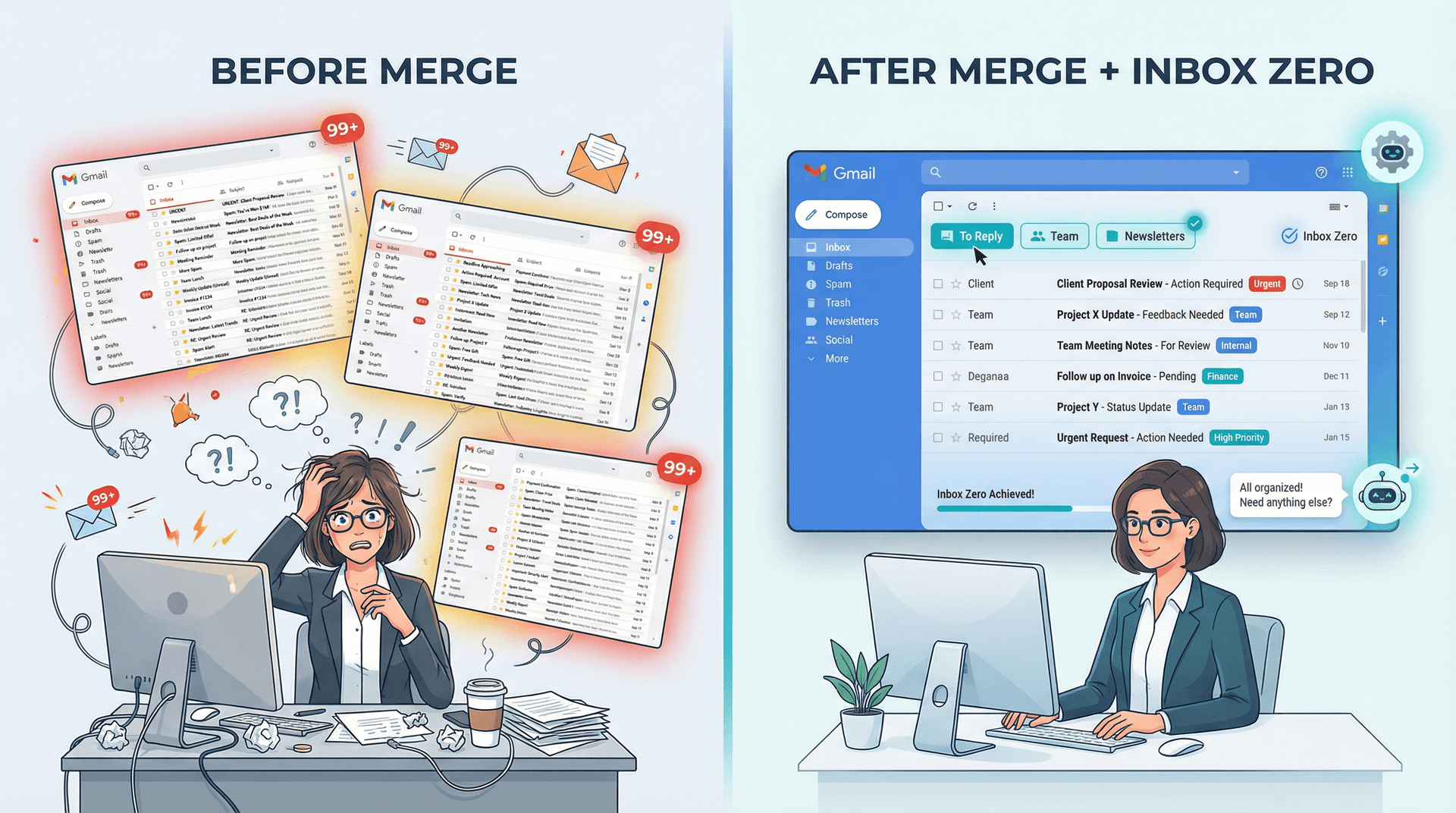
If you consolidate into a primary Gmail account, connecting that account to Inbox Zero lets you auto-label by sender type (Team, Customers, etc.), auto-archive cold outreach and low-value promotions, and draft replies for threads that actually matter.
If you keep multiple Gmail accounts, Inbox Zero can connect to each one via OAuth and act as an AI assistant layered on top, without changing where emails live. Inbox Zero Tabs for Gmail gives you a visual split inbox in native Gmail for each account, which is especially handy after a merge when your primary inbox becomes the "one source of truth."
You can keep automation "draft only" at first so nothing happens without your explicit review.
Important Notes About Gmail Features in 2025
All of the specific behaviors, settings, and limitations in this guide are based on public documentation and articles available in 2024-2025. That includes Gmail's announcement that Gmailify and POP-based "Check mail from other accounts" will stop being supported on the web starting January 2026, current Gmail Help pages for forwarding, imports, POP/IMAP, Multiple inboxes, contacts, Calendar, and Drive ownership transfer, and recent coverage of Gmail's Manage Subscriptions feature and inbox management improvements in 2025.
Google regularly tweaks the UI text and locations of settings, but the underlying concepts (forwarding, import, aliasing, data migration) tend to be stable. When in doubt, cross-check any step in this guide against the linked Help Center articles.
If you follow the pipeline mindset — back up, import history, forward new mail, preserve your From addresses, migrate related data, then clean and automate — you'll end up with the effect of "merged Gmail accounts" without losing emails or breaking your day-to-day life.
What is the Inbox Zero Method & How do I Master It?
Discover the Inbox Zero method and learn simple steps to take control of your email inbox, stay organized, and boost productivity.

4 Email Productivity Hacks from Tim Ferriss, Andrew Huberman, and Sam Harris
Explore 4 powerful email productivity hacks from tech and wellness experts like Tim Ferriss and Andrew Huberman. Learn to create focus, optimize processing, manage time wisely, and delegate effectively to conquer your inbox.
Best Time to Send Emails for Response (2026)
Stop guessing when to send emails. Get data-backed timing strategies from 2026 research that improve response rates across all scenarios.
How To Organize Outlook Inbox? (2026 Guide)
Learn how to organize Outlook inbox with rules, folders, categories, and AI automation. Step-by-step guide for 2026 that actually works.